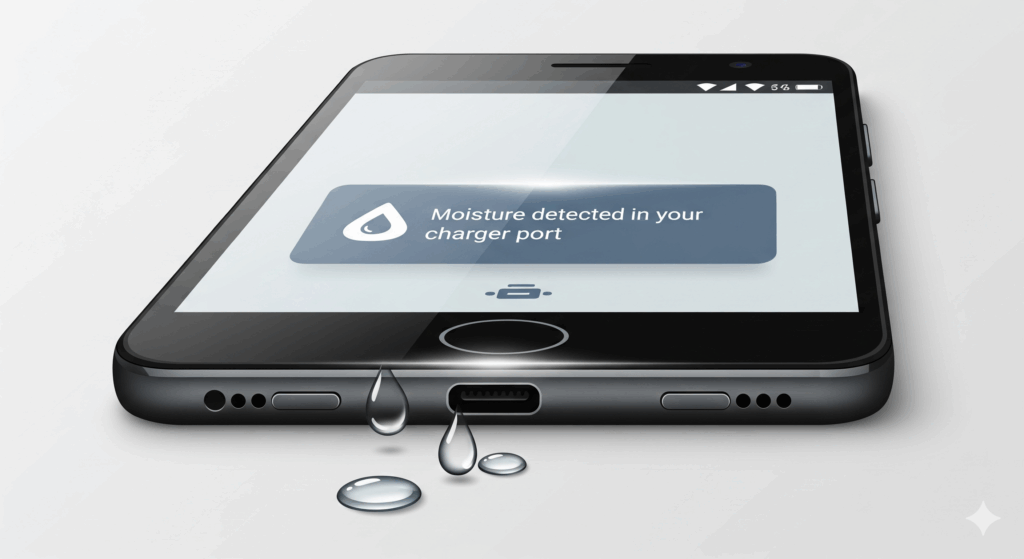
Few things are more alarming than plugging in your Android phone to charge, only to be greeted by the dreaded "Moisture Detected in Charging Port" warning. This message, often accompanied by a charging lockout, can spark immediate fear of water damage and an expensive repair bill. But here’s a reassuring truth: in many cases, the problem isn't a submerged phone but rather a common and easily fixable software or hardware glitch.
As a team of certified technicians with years of hands-on experience in smartphone repair, we've encountered this exact issue countless times, from humid summers to dusty work environments. This guide is built on our professional expertise and informed by the engineering principles behind these crucial safety features. We’ll walk you through the precise causes, provide a detailed troubleshooting roadmap, and share valuable prevention tips to keep your device safe and functional.
Understanding the “Moisture Detected” Alert and the Science Behind It
The "Moisture Detected" alert is not a bug; it’s a critical safety feature designed to protect your device from irreversible damage. Modern smartphones with an IP rating (like the IP68 standard found in many Samsung S-Series models) are equipped with a tiny sensor in the USB-C or micro-USB port. This sensor works by measuring the electrical resistance across the port's pins.
Normally, the pins are separated and non-conductive, meaning resistance is extremely high. Water and other conductive liquids, like sweat or saltwater, create a bridge between these pins, causing a significant drop in resistance. When the sensor detects this change below a certain threshold, it immediately cuts off the charging current. This is a crucial safety measure to prevent a short circuit, an uncontrolled flow of electricity that can fry the port, damage the battery's delicate charging circuitry, and even permanently ruin the phone's main logic board.
However, this sensor isn't always perfect. It can be a bit overzealous, triggering a false alarm for a variety of reasons that have nothing to do with being dunked in water.
Residual Moisture: After a phone has dried, a small amount of residue, such as salt from ocean spray or mineral deposits from hard water, can remain in the port. These residues are often conductive and can create a weak electrical bridge between the pins, keeping the sensor active even when the port looks dry.
High Humidity and Condensation: Living in or traveling to a high-humidity environment can cause microscopic condensation to form inside the charging port. A quick temperature change, like moving from a cold, air-conditioned car to a hot, humid outdoor space, is a common culprit. This can be enough to fool the sensitive sensor.
Dust, Lint, and Debris: Pocket lint, dust, and sand can get lodged in the charging port. These seemingly innocuous particles are actually problematic. They can absorb microscopic amounts of moisture from the air and create a conductive path, triggering the sensor. In some cases, the physical presence of the debris alone can even create a static charge that mimics a short.
Software Glitches: Occasionally, a bug in the Android operating system or a recent software update can cause the "Moisture Detected" alert to appear erroneously, even when the port is completely clean and dry. This is especially common after a system update that may contain a minor bug related to sensor communication.
Faulty Hardware: While less common, the moisture sensor itself can fail or become permanently damaged, leading to a persistent alert regardless of the port's condition. In these cases, the port or a related component on the motherboard may need to be replaced.
It is important to note that the presence of moisture sensors and other protective measures is a key component of modern smartphone design, as highlighted in academic papers on the evolution of phone hardware and sensors, such as this one on Sensors and Mobile Phones: Evolution and State-of-the-Art.
Step-by-Step Fixes for the “Moisture Detected” Alert
Before you consider professional help, we recommend a series of diagnostic steps. The key is to address the most common causes first. For specific troubleshooting steps directly from the manufacturer, you can also consult the official Samsung support page on water drop icons and charging issues.
1: The Drying Process (The Correct Way)
This is the most crucial initial step, even if you’re certain your phone hasn’t been exposed to water.
Power Down Your Phone: First, unplug the charging cable and turn your phone off completely. This prevents any potential electrical damage while you work. Do not attempt to charge it again until the port is confirmed dry.
Air-Dry in a Well-Ventilated Area: Place your phone upright on a flat, dry surface in a cool, well-ventilated room. A gentle fan blowing on the device can significantly speed up the drying process. Leave it for at least 60-90 minutes. Patience is key.
Avoid Common Mistakes: Do not use a hairdryer, oven, or any other source of direct heat. High temperatures can cause the delicate internal components and adhesives to warp, melt, and fail. The "rice trick" is also a myth that can do more harm than good. Rice is ineffective at absorbing moisture from inside a device and its dust and starch particles can actually get into the port, causing new problems.
2: Cleaning the Port (Proceed with Extreme Caution)
If the alert persists after a thorough drying, it's time to check for and remove debris.
Gather the Right Tools: Use a non-metallic, non-conductive tool like a plastic toothpick or a small, soft-bristled toothbrush. A can of compressed air can also be effective but must be used correctly.
Gentle Cleaning: With the phone powered off, shine a flashlight into the charging port to inspect for lint, dust, or sand. Very gently use the plastic tool to scrape and dislodge any visible debris. The goal is to be meticulous but gentle; avoid a forceful or jabbing motion that could bend or break the pins.
Use Compressed Air (with care): If you use compressed air, use it in short, controlled bursts from a distance (at least 6 inches away). Holding the can too close or tilting it can cause moisture or liquid propellant to spray into the port, making the problem worse and potentially freezing components.
3: Software-Based Troubleshooting
Sometimes, the issue is purely a software glitch that needs a reset.
Clear the USB Cache: This is one of the most effective software fixes. Go to your phone’s Settings > Apps > tap the filter icon (or three dots) and select Show System Apps. Find and select "USB Settings" or "Android System" (on some models) and then navigate to Storage > Clear Cache. Restart your phone and try charging again. For a more detailed guide on this process, you can also refer to this article from How-To Geek on clearing the "Moisture Detected" warning.
Force Restart: If a regular restart doesn't work, a forced restart (often called a "soft reset") can clear out temporary system bugs. The process varies by manufacturer, but for many Android devices, it involves pressing and holding the Power and Volume Down buttons simultaneously for about 10 seconds.
Check for Software Updates: Occasionally, a specific software update can fix a known issue with the moisture sensor. Go to Settings > Software Update and check for and install any available updates.
Use Wireless Charging: If your phone supports it, wireless charging is a great temporary solution. It completely bypasses the USB port, allowing you to charge your phone and buy time until you can properly address the issue. You can explore wireless charging options and other accessories at tpkwireless.com.
Practical Advice & Prevention
Preventing the “Moisture Detected” alert is far easier than fixing it. Here is some actionable advice to protect your device.
Use Port Plugs: Simple and inexpensive, a small silicone USB-C port plug creates a physical barrier that prevents dust, lint, sand, and accidental water splashes from entering the port.
Invest in a Protective Case: Many protective phone cases are designed with flaps or covers that seal the charging port from the elements. This is a great, proactive way to keep your port clean and dry.
Avoid Extreme Environments: When possible, avoid charging your phone in high-humidity areas like bathrooms while showering, steamy kitchens, or near a pool. If you're at the beach, keep your phone in a sealed waterproof pouch or a dry bag to protect it from both water and sand.
Use Quality Accessories: Always use high-quality, reputable charging cables and power adapters. Cheap, uncertified cables may not meet safety standards and could potentially cause electrical issues, confusing the moisture sensor.
When to See a Professional: If you have tried all the above steps and the "Moisture Detected" alert won't go away, it's likely a hardware issue with the port or the sensor itself. Attempting DIY repairs with a compromised charging port is risky and can lead to more significant damage. A professional technician can perform a more advanced diagnosis, including:
Ultrasonic Cleaning: A specialized process to safely and effectively clean the charging port of any deep-seated debris or residue.
Port Replacement: If the sensor or port is physically damaged, the entire component can be professionally replaced, a task that requires specialized tools and expertise.
The “Moisture Detected” alert, while frustrating, is a safety mechanism that shouldn't be ignored. By understanding its causes—from actual water exposure to false alarms caused by humidity or debris—you can approach the problem calmly and effectively. Simple steps like drying your phone, carefully cleaning the port, and a software reset will solve the issue for most users.
However, if the problem persists, it’s a clear sign of a deeper hardware issue. Attempting DIY repairs with a compromised charging port is risky and can lead to more significant damage. For a definitive diagnosis and a professional fix, don't hesitate to reach out to a trusted repair service.
Feel free to ask any questions in the comments below, or learn more about our services at TPK Wireless.
FAQs
Q1: Will the “Moisture Detected” alert go away on its own? A1: In many cases, yes, especially if it was caused by minor humidity or a quick splash. The sensor will reset once it detects that the port is completely dry. This can take anywhere from a few minutes to several hours. For peace of mind, it’s best to follow the drying and cleaning steps to speed up the process.
Q2: Is it safe to use a wireless charger with the alert on? A2: Yes, it is perfectly safe. The "Moisture Detected" alert is specifically designed to prevent current from flowing through the compromised USB port. Wireless charging, which uses magnetic induction, bypasses the port entirely, making it a safe and recommended way to charge your phone while waiting for the port to dry or for the alert to clear.
Q3: Can a fast charger make it worse? A3: No, a fast charger does not inherently make the problem worse, as the "Moisture Detected" alert prevents any current from flowing into the port in the first place. The real danger is if the alert is ignored or bypassed, as a higher-wattage fast charger could cause more severe damage to a compromised port than a standard charger.
Q4: What if I tried to charge it while the alert was on? A4: Your phone's software and hardware safety features are designed to prevent this. The alert is a hard lockout, meaning it will not allow any current to flow. The only risk is if the sensor itself is faulty or you use a severely damaged cable, which could bypass the safety features.
Disclaimer
The information provided in this blog post is intended for educational and informational purposes only and should not be considered a substitute for professional technical advice. While the steps outlined are generally safe for most users, performing any kind of physical cleaning or troubleshooting on a delicate electronic device carries a degree of risk. TPK Wireless is not responsible for any damage to your device that may occur from attempting these repairs. We strongly recommend consulting with a certified professional technician for any persistent or complex issues.


 60
60